Telviva One User Guide
This User Guide covers the following topics:
- Logging in
- Making a call
- Webphone controls
- Contacts
- History
- Voicemail
- Presence Status
- Chat
- Meetings
- Settings
Logging In
- Open Telviva One in your browser - https://one.telviva.com/
- You'll be able to log in using one of the following options:
- Username and password
- Log in with Google
-Log in with Microsoft - If you are unable to remember your password , you can use the 'Forgot Password' option and reset it.
Making a call
- Open the dialer located in the toolbar at the top of the screen.
- Here you will be able to enter the number/extension of the person you would like to call.
Webphone Controls
While in a call you'll access to the following controls/actions:
Hold: This allows you to place your call on hold/unhold.
Mute: This allows you to mute/unmute your call.
Tones: This opens the dialpad when you are required to enter/dial specific keys in IVRs , eg. Press 1 for Sales, Press 2 for Service.
Transfer: This lets you initiate a call transfer. When this option is selected a dialpad will open for you to enter the number of the person you would like to transfer your call to.
You will be presented with 2 options: Attended and Unattended.
You will be presented with 2 options: Attended and Unattended.
- Attended transfers will allow you to speak to the person you are calling first. This is used to let them know you will be transferring a call.
- Unattended ( or blind) transfers the call immediately
New Meeting: This allows you to convert the call into a meeting
Make another call: This places your current call on hold and allows you to make an additional call.
While multiple calls are active you'll have to the following options:
 Transfer the call
 Swap between calls, speaking to one of the callers and placing the other on hold
 Conference/Merge the calls.
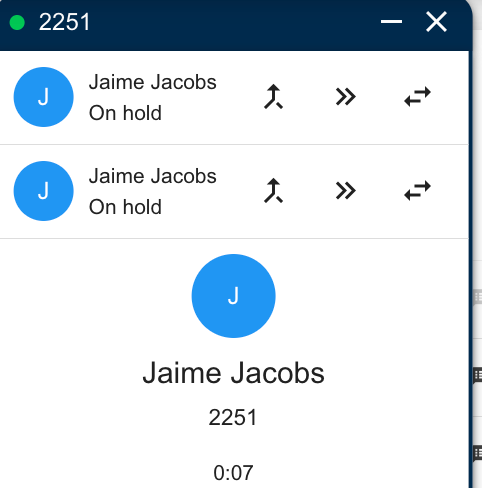
While multiple calls are active you'll have to the following options:
Contacts
Contacts can be found under the 'Calls' drop down in the top toolbar.
Here you will be able to see all your saved contacts.
You'll also be able to download your contact list, add new contacts and refresh the contact page.
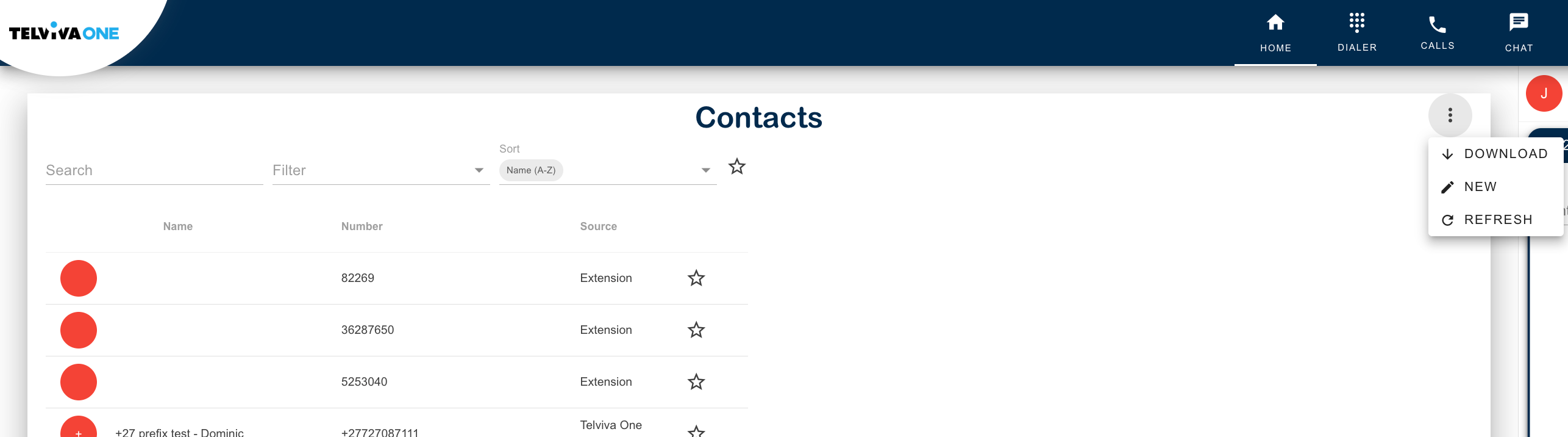
When clicking on a contact you will have the option to add them to your favorites list by clicking/highlighting the star/favorite icon.
History
History can be found under the 'Calls' drop down in the top toolbar
Here you will be able to see your call and meeting history.
You'll be able to sort by date as well as filter by criteria if you are looking for specific interactions.
You also have the option to call back, save the caller to your contacts or download the call recording.
It is important to remember that call recording is a paid feature.
Voicemail
This function allows you to manage your voicemail messages and storage. By default, up to 100 messages are stored, thereafter they are deleted in a First in / First out queue, i.e. the oldest messages are deleted to make space for new messages. The management page will open :
The  option in the top right hand corner will take you to a configuration page where you can customise greetings and voicemail options:
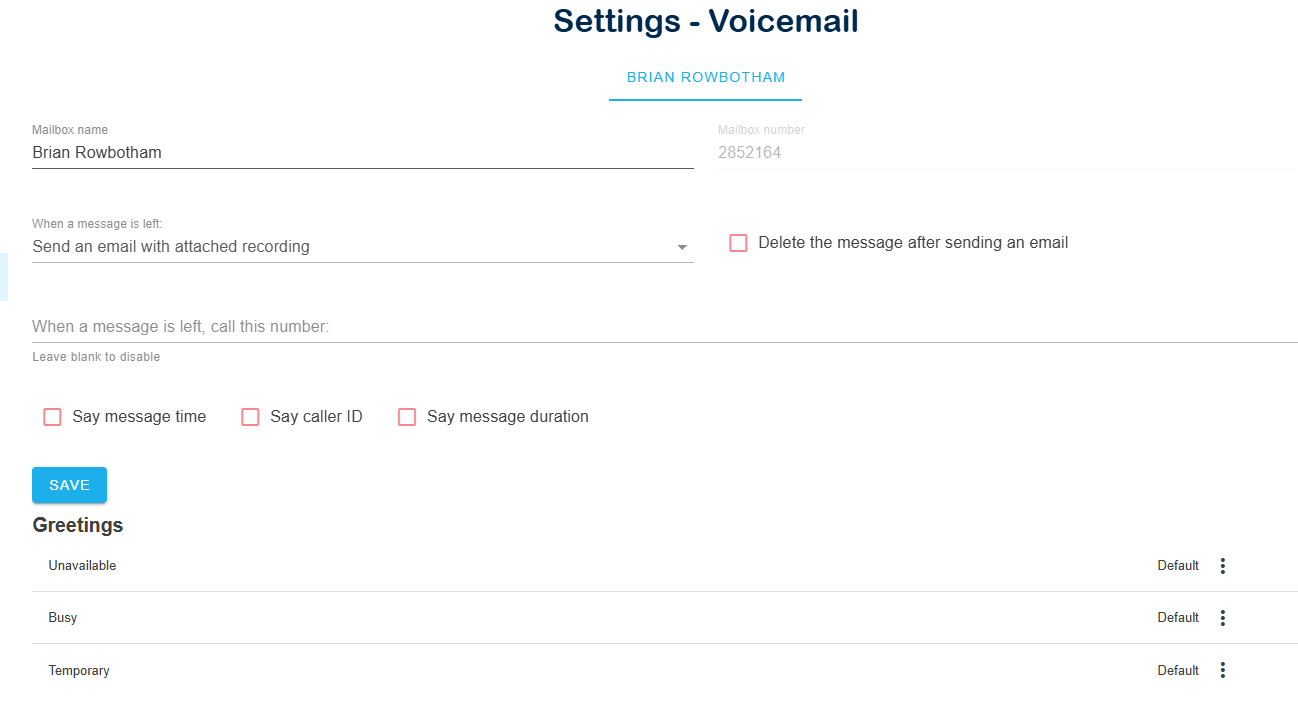
The menu options on the left allow some degree of message categorisation:
Presence Status
You are able to change/edit your status in 2 ways within Telviva One Web.
- DND
The DND option can be found under the 'Calls' dropdown in the top toolbar.
You'll be able to choose between the following:
-Do not disturb here which applies DND to Web only
-Do not disturb anywhere which applies DND to all devices/platforms
This will be visible when enabled with the option to disable by clicking 'DND OFF' in the top right corner. - You can also set a custom status by clicking the edit/pen icon in the top right corner next to your name
This allows you to set yourself to appear as busy as well as add a custom status messgage, eg. Lunch, Meeting, Break.
Chat
Chat can be found in the top toolbar, and allows you to access to view and respond to chats as well as start new interactions.
Important to remember that chats are conducted within chat rooms.
This means that when you initiate a chat, a room is created and other parties are sent invitations which they need to accept, and when ending chats, you are required to leave the room and close it.
When starting a chat a chat you will be presented with 2 options:
- Direct Message, which starts a one-to-one conversation
-Group Chat, which allows you to add multiple participants to the chat room
While within a chat room, you have options to add/send attachments, call the user and view all chat participants.
Meetings
Meetings are only available to Premium subscribers, andcan be found in the top toolbar. This page allows you to view, add and modify meetings.
You can link external calendars, such as Google and Microsoft, to synchronise them.
You'll have the following options to choose from within the Meetings interface:
- Devices: This allows you to select and test the Microphone, Speaker and Camera you would like to use when joining meetings.
- Start a Meeting: This instantly starts a meeting and adds you to the room.
This meeting link can then be shared with others to join as a guest. - Join Existing Meeting: This will let you join meeting rooms that have already been created by entering its unique code.
The code can be found at the end of a meeting room URL, eg. https://one.telviva.com/meetings/xxxx-xxxx-xxxx - New Meeting: This lets you create a meeting room that can be saved to your directory or added to your linked calendar.
Settings
Settings can be accessed by clicking on your profile icon in the top right corner.
User Settings
Clicking here will offer a drop down menu of options:
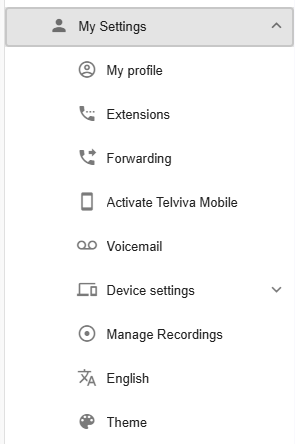
My Profile
Here you will be able to edit/update your personal information as well as your time and date format.
Here you will be able to edit/update your personal information as well as your time and date format.